View Single Post in: Sea, Sky and Light parameters- let's learn!

#3
 26th Oct 2011 at 11:31 PM
26th Oct 2011 at 11:31 PM
Let's Experiment!
Myself and many others have already experimented with adding custom INI files to worlds, and tweaking certain figures. However, it would be nice to be able to understand fully what each parameter does, and to find out some limits/ extremes.
Want to try it for yourself?
Here are some INI files I made for one of my worlds, which you could tweak and play with:
http://chii.modthesims.info/getfile.php?file=1324400
Here are a selection of colour ramp files, copied from the EA worlds:
http://chii.modthesims.info/getfile.php?file=1243559
The files for specific EA worlds are also attached to this post.
Download the files you would like to try.
 BACKUP ANY FILES YOU CHANGE BEFORE YOU CHANGE THEM!
If you plan on importing these into a world, make a safe copy of the world. If you plan on changing the game files, backup the originals first.
This is so that if anything goes BOOM you can put the safe copy back, and no-one will cry.
To import the files:
You can either import these files into your completed, installed world (so that you can test in-game), or else you can import them into a world you are working on in CAW, to test them in CAW.
 atra-virago had the idea to test in CAW, as you can use the 'Cloudiness' slider on the 'Time Of Day' panel to scroll through the five weather types. Combined with the 'Time' settings and 'Speed of Time Passage' slider, this means that you can watch your custom weather and view sunrises/ sunsets without loading the game, and with much greater control. The 'Cloudiness slider positions correspond to the weather types as follows (Left-Right):
1=Clear
2=Partly Cloudy
3=Overcast
4=Stormy
5=Custom
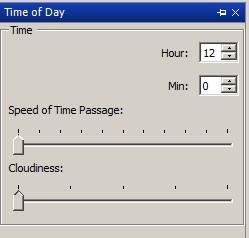
If you unpause the game in CAW and slide the 'Speed of Time Passage' slider to the right, you will see that the sky changes as it would in-game, choosing random weather types each interval and cycling through day/night. At any time you can pause and grab the 'cloudiness' slider, and scroll through the weather types to see what they will look like at that particular time of day (or indeed, to identify which type of weather it is that you are seeing).
BACKUP BEFORE YOU EXPERIMENT!
Make a copy of the file before you edit it.
For in-game worlds, these will be in Documents\ Electronic Arts\ The Sims 3\ Installed Worlds\.
For CAW projects, these will be in Documents\ Electronic Arts\ The Sims 3 Create A World Tool\ UserToolData\ Worlds. Don't forget that CAW projects have three files associated with each world- a .world file, a .Settings file and a folder. Backup all three!
NOTE: If you then save the world in CAW, the game will discard the ini files but the colour ramps will remain. This can cause undesirable graphical glitches such as unnatural colours, unnaturally dark world, transparent water, unnatural glow or a foggy veil. Be sure to re-import the INI files again if you save the world in CAW, and again before exporting the world!
Put your backup somewhere safe, on your desktop or on a flash drive. Then, if you want to get rid of the changes you made you can just delete the world and replace it with the original- much easier than trying to find all the files you imported and deleting them!
NOTE: If you choose to edit the EA worlds, please be sure to Backup these before proceeding. Be warned that future patches may need to read these files, and so you should keep an original in case.
The EA worlds are located in [Game Install Location]\ Electronic Arts\ The Sims 3 [EP Name]\ GameData\ Shared\ NonPackaged\ Worlds.
You need S3Pe:
http://www.simlogical.com/ContentUp...te/uploads/189/
Open the [worldname].world file in S3Pe. Click Resource>Import>From file and browse to the location of the extracted files. Make sure 'replace duplicates' and 'use resource name' are ticked. You can tick 'compress' too if you like!
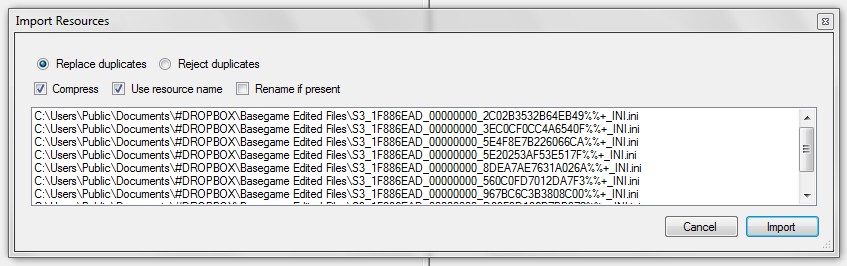
Click Import, then File> Save. That's it! The resources are imported. You can now test your world in game.
Try: the basegame edited files alone, and then add the colour ramps.
Try: Amending the parameters in the INI files to see what happens.
You could amend the cloud cover as mentioned above, or the speed/ direction. Also play with the fog, change the start and end distances and the curve figure, for each time of day. Example below:
If you want to experiment with a particular parameter, make ALL of the weather files the same- so make the figures in each of these identical:
S3_1F886EAD_00000000_560C0FD7012DA7F3%%+_INI.ini
S3_1F886EAD_00000000_967BC6C3B3808C00%%+_INI.ini
S3_1F886EAD_00000000_FE1F6A95A24A604A%%+_INI.ini
S3_1F886EAD_00000000_2C02B3532B64EB49%%+_INI.ini
S3_1F886EAD_00000000_8DEA7AE7631A026A%%+_INI.ini
That way, you will be sure that what you are seeing is a result of the changes you just made!
Try: Editing the colour ramp files to change the sea and sky colour.
You need NVidia DDS Utilities to do this, as the files are in DDS format:
https://developer.nvidia.com/legacy-texture-tools
Photoshop DDS Plugin here:
http://developer.nvidia.com/nvidia-...adobe-photoshop
GIMP DDS plugin here:
http://registry.gimp.org/node/70
We don't have a definitive list of what each line of the colour ramps affects. However, some people have done some research into this:
A description of what each line of the colour ramp affects in this post.
A labelled colour ramp in this post.
PoisonFrog has done some excellent research into colour ramp function in this post.
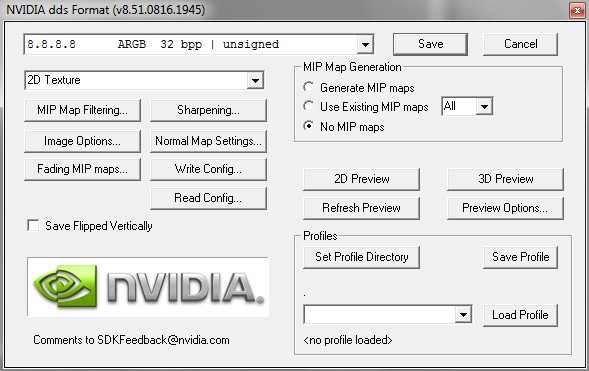
 You should save your edited file as a 32 bit A8R8G8B8 file, no mip-maps. If the world crashes, or your colours/ world look wrong, check your alpha and mipmap settings, as if you get this wrong the game will not read the files!
Bakafox pointed out what this will look like in Photoshop.
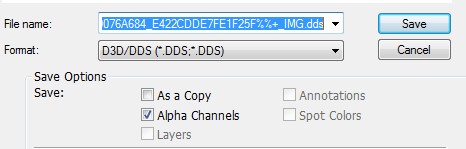
First, make sure the alpha box is ticked:
Then choose '8.8.8.8 ARGB 32bpp Unsigned'. Note I have 'no mip maps' ticked!:
For GIMP it should look a bit like this:
Click 'Save as' and keep the same file extension (DDS). Then click Save.
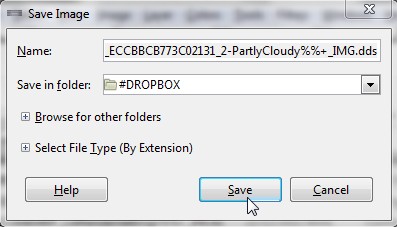
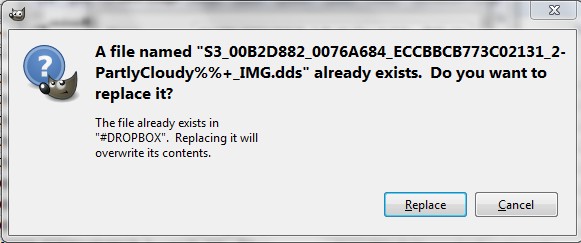
If you have kept the filename the same as well as the extension, then click 'replace' to overwrite:
In 'Compression' choose NONE and choose RGBA8 in the 'format' box. Note, the 'Generate Mip-Maps' box is unticked:
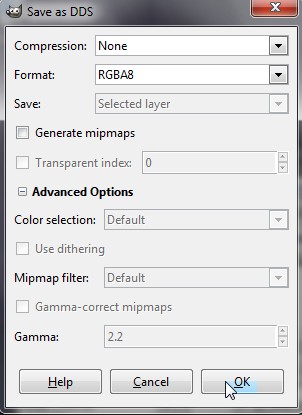
Leave all other settings as they are, and click ok.
If you are a Photoshop user, PoisonFrog has made a Photoshop colour ramp template. Download it in this post.
Try: Opening the EA worlds in S3Pe, and exporting the following if they are there:
S3_00B2D882_0076A684_7529C26EE8E2A9E6%%+_IMG.dds
S3_00B2D882_0076A684_28C841C9462BCDE0%%+_IMG.dds
S3_00B2D882_0076A684_E422CDDE7FE1F25F%%+_IMG.dds
S3_00B2D882_0076A684_ECCBBCB773C02131%%+_IMG.dds
S3_00B2D882_0076A684_F0A86F660985BF20%%+_IMG.dds
S3_1F886EAD_00000000_560C0FD7012DA7F3%%+_INI.ini
S3_1F886EAD_00000000_967BC6C3B3808C00%%+_INI.ini
S3_1F886EAD_00000000_FE1F6A95A24A604A%%+_INI.ini
S3_1F886EAD_00000000_2C02B3532B64EB49%%+_INI.ini
S3_1F886EAD_00000000_8DEA7AE7631A026A%%+_INI.ini
S3_1F886EAD_00000000_3EC0CF0CC4A6540F%%+_INI.ini
S3_1F886EAD_00000000_5E4F8E7B226066CA%%+_INI.ini
S3_1F886EAD_00000000_5E20253AF53E517F%%+_INI.ini
S3_1F886EAD_00000000_D89F9D186B7BB372%%+_INI.ini
Then import those into your custom world.
I've uploaded the EA world ini files and colour ramps, you can get them from the following links.
Appaloosa Plains
Basegame INI files
Bridgeport
China
Egypt
France
Twinbrook
Lunar Lakes
Starlight Shores
Lucky Palms (thanks Kiwimaus!)
Sunlit Tides (thanks propackets!)
Moonlight Falls (thanks propackets!)
Twinbrook and Bridgeport have remarkably similar INI files and colour ramps!
Note: Sunlit tides, like China, Egypt and France, only contains overrides for two weather states.
 Note on France and China DDS files:
One of the France dds colour ramps and one of the China dds colour ramps have no alpha, and so can sometimes result in blocky shadows on the terrain, as in this image:
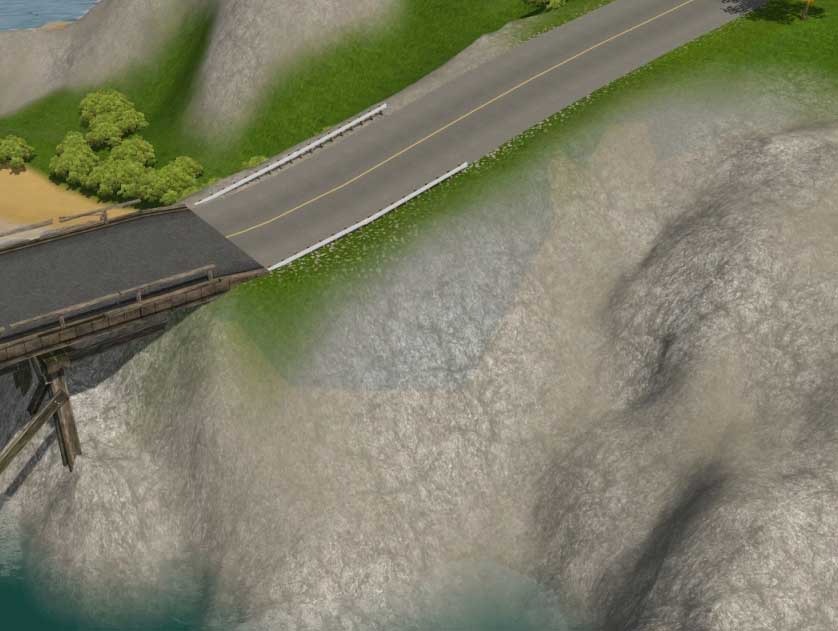
To solve this, the images should be corrected to give the correct alpha channel. I have amended these color ramp and they can be downloaded here if you would like to try them:
Click here for France
Click here for China
Report your results!
Take pictures of your results, give figures, share INI files. What I'm aiming for is to be able to write a comprehensive guide about how to get exactly the weather/ sky/ light you want.
Importing Weather Parameters into Packed (Sims3Pack) worlds
If you wish to include your colour ramps and ini files in a packed world (Sims3Pack file), this can be done by importing the ini files and colour ramps into your CAW world file before you export your world to Sims3Pack.
Please note that if you then save the world in CAW, the game will discard the ini files but the colour ramps will remain. This can cause undesirable graphical glitches such as unnatural colours, unnaturally dark world, transparent water, unnatural glow or a foggy veil.
To solve this, you need to either re-import your ini files to the world after saving, or else remove the colour ramps to get rid of the custom weather altogether. The files you should remove are as follows:
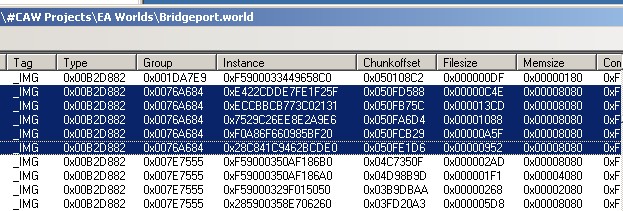
 As always, thanks to everyone who has contributed to this in previous threads, and thanks in advance to everyone who contributes here. Please feel free to point out any errors in my information, or to add information. I would like to know if I'm making any wrong assumptions and would like to know what you know!
Myself and many others have already experimented with adding custom INI files to worlds, and tweaking certain figures. However, it would be nice to be able to understand fully what each parameter does, and to find out some limits/ extremes.
Want to try it for yourself?
Here are some INI files I made for one of my worlds, which you could tweak and play with:
http://chii.modthesims.info/getfile.php?file=1324400
Here are a selection of colour ramp files, copied from the EA worlds:
http://chii.modthesims.info/getfile.php?file=1243559
The files for specific EA worlds are also attached to this post.
Download the files you would like to try.
 BACKUP ANY FILES YOU CHANGE BEFORE YOU CHANGE THEM!
If you plan on importing these into a world, make a safe copy of the world. If you plan on changing the game files, backup the originals first.
This is so that if anything goes BOOM you can put the safe copy back, and no-one will cry.

To import the files:
You can either import these files into your completed, installed world (so that you can test in-game), or else you can import them into a world you are working on in CAW, to test them in CAW.
 atra-virago had the idea to test in CAW, as you can use the 'Cloudiness' slider on the 'Time Of Day' panel to scroll through the five weather types. Combined with the 'Time' settings and 'Speed of Time Passage' slider, this means that you can watch your custom weather and view sunrises/ sunsets without loading the game, and with much greater control. The 'Cloudiness slider positions correspond to the weather types as follows (Left-Right):
1=Clear
2=Partly Cloudy
3=Overcast
4=Stormy
5=Custom
If you unpause the game in CAW and slide the 'Speed of Time Passage' slider to the right, you will see that the sky changes as it would in-game, choosing random weather types each interval and cycling through day/night. At any time you can pause and grab the 'cloudiness' slider, and scroll through the weather types to see what they will look like at that particular time of day (or indeed, to identify which type of weather it is that you are seeing).
BACKUP BEFORE YOU EXPERIMENT!
Make a copy of the file before you edit it.
For in-game worlds, these will be in Documents\ Electronic Arts\ The Sims 3\ Installed Worlds\.
For CAW projects, these will be in Documents\ Electronic Arts\ The Sims 3 Create A World Tool\ UserToolData\ Worlds. Don't forget that CAW projects have three files associated with each world- a .world file, a .Settings file and a folder. Backup all three!
NOTE: If you then save the world in CAW, the game will discard the ini files but the colour ramps will remain. This can cause undesirable graphical glitches such as unnatural colours, unnaturally dark world, transparent water, unnatural glow or a foggy veil. Be sure to re-import the INI files again if you save the world in CAW, and again before exporting the world!
Put your backup somewhere safe, on your desktop or on a flash drive. Then, if you want to get rid of the changes you made you can just delete the world and replace it with the original- much easier than trying to find all the files you imported and deleting them!
NOTE: If you choose to edit the EA worlds, please be sure to Backup these before proceeding. Be warned that future patches may need to read these files, and so you should keep an original in case.
The EA worlds are located in [Game Install Location]\ Electronic Arts\ The Sims 3 [EP Name]\ GameData\ Shared\ NonPackaged\ Worlds.
You need S3Pe:
http://www.simlogical.com/ContentUp...te/uploads/189/
Open the [worldname].world file in S3Pe. Click Resource>Import>From file and browse to the location of the extracted files. Make sure 'replace duplicates' and 'use resource name' are ticked. You can tick 'compress' too if you like!
Click Import, then File> Save. That's it! The resources are imported. You can now test your world in game.
Try: the basegame edited files alone, and then add the colour ramps.
Try: Amending the parameters in the INI files to see what happens.
You could amend the cloud cover as mentioned above, or the speed/ direction. Also play with the fog, change the start and end distances and the curve figure, for each time of day. Example below:
Code:
[FogDistance1]
start = 0
end = 500
curve = 0.75
timeOfDay = 1
If you want to experiment with a particular parameter, make ALL of the weather files the same- so make the figures in each of these identical:
S3_1F886EAD_00000000_560C0FD7012DA7F3%%+_INI.ini
S3_1F886EAD_00000000_967BC6C3B3808C00%%+_INI.ini
S3_1F886EAD_00000000_FE1F6A95A24A604A%%+_INI.ini
S3_1F886EAD_00000000_2C02B3532B64EB49%%+_INI.ini
S3_1F886EAD_00000000_8DEA7AE7631A026A%%+_INI.ini
That way, you will be sure that what you are seeing is a result of the changes you just made!
Try: Editing the colour ramp files to change the sea and sky colour.
You need NVidia DDS Utilities to do this, as the files are in DDS format:
https://developer.nvidia.com/legacy-texture-tools
Photoshop DDS Plugin here:
http://developer.nvidia.com/nvidia-...adobe-photoshop
GIMP DDS plugin here:
http://registry.gimp.org/node/70
We don't have a definitive list of what each line of the colour ramps affects. However, some people have done some research into this:
A description of what each line of the colour ramp affects in this post.
A labelled colour ramp in this post.
PoisonFrog has done some excellent research into colour ramp function in this post.
 You should save your edited file as a 32 bit A8R8G8B8 file, no mip-maps. If the world crashes, or your colours/ world look wrong, check your alpha and mipmap settings, as if you get this wrong the game will not read the files!
 Bakafox pointed out what this will look like in Photoshop.
First, make sure the alpha box is ticked:
Then choose '8.8.8.8 ARGB 32bpp Unsigned'. Note I have 'no mip maps' ticked!:
For GIMP it should look a bit like this:
Click 'Save as' and keep the same file extension (DDS). Then click Save.
If you have kept the filename the same as well as the extension, then click 'replace' to overwrite:
In 'Compression' choose NONE and choose RGBA8 in the 'format' box. Note, the 'Generate Mip-Maps' box is unticked:
Leave all other settings as they are, and click ok.
If you are a Photoshop user, PoisonFrog has made a Photoshop colour ramp template. Download it in this post.
Try: Opening the EA worlds in S3Pe, and exporting the following if they are there:
S3_00B2D882_0076A684_7529C26EE8E2A9E6%%+_IMG.dds
S3_00B2D882_0076A684_28C841C9462BCDE0%%+_IMG.dds
S3_00B2D882_0076A684_E422CDDE7FE1F25F%%+_IMG.dds
S3_00B2D882_0076A684_ECCBBCB773C02131%%+_IMG.dds
S3_00B2D882_0076A684_F0A86F660985BF20%%+_IMG.dds
S3_1F886EAD_00000000_560C0FD7012DA7F3%%+_INI.ini
S3_1F886EAD_00000000_967BC6C3B3808C00%%+_INI.ini
S3_1F886EAD_00000000_FE1F6A95A24A604A%%+_INI.ini
S3_1F886EAD_00000000_2C02B3532B64EB49%%+_INI.ini
S3_1F886EAD_00000000_8DEA7AE7631A026A%%+_INI.ini
S3_1F886EAD_00000000_3EC0CF0CC4A6540F%%+_INI.ini
S3_1F886EAD_00000000_5E4F8E7B226066CA%%+_INI.ini
S3_1F886EAD_00000000_5E20253AF53E517F%%+_INI.ini
S3_1F886EAD_00000000_D89F9D186B7BB372%%+_INI.ini
Then import those into your custom world.
I've uploaded the EA world ini files and colour ramps, you can get them from the following links.
Appaloosa Plains
Basegame INI files
Bridgeport
China
Egypt
France
Twinbrook
Lunar Lakes
Starlight Shores
Lucky Palms (thanks Kiwimaus!)
Sunlit Tides (thanks propackets!)
Moonlight Falls (thanks propackets!)
Twinbrook and Bridgeport have remarkably similar INI files and colour ramps!
Note: Sunlit tides, like China, Egypt and France, only contains overrides for two weather states.
 Note on France and China DDS files:
One of the France dds colour ramps and one of the China dds colour ramps have no alpha, and so can sometimes result in blocky shadows on the terrain, as in this image:
To solve this, the images should be corrected to give the correct alpha channel. I have amended these color ramp and they can be downloaded here if you would like to try them:
Click here for France
Click here for China
Report your results!
Take pictures of your results, give figures, share INI files. What I'm aiming for is to be able to write a comprehensive guide about how to get exactly the weather/ sky/ light you want.
Importing Weather Parameters into Packed (Sims3Pack) worlds
If you wish to include your colour ramps and ini files in a packed world (Sims3Pack file), this can be done by importing the ini files and colour ramps into your CAW world file before you export your world to Sims3Pack.
Please note that if you then save the world in CAW, the game will discard the ini files but the colour ramps will remain. This can cause undesirable graphical glitches such as unnatural colours, unnaturally dark world, transparent water, unnatural glow or a foggy veil.
To solve this, you need to either re-import your ini files to the world after saving, or else remove the colour ramps to get rid of the custom weather altogether. The files you should remove are as follows:
 As always, thanks to everyone who has contributed to this in previous threads, and thanks in advance to everyone who contributes here. Please feel free to point out any errors in my information, or to add information. I would like to know if I'm making any wrong assumptions and would like to know what you know!
Attached files:
 |
Custom Colour Ramps.zip (15.2 KB, 2373 downloads) |
| |
AppaloosaPlains.zip (23.0 KB, 543 downloads) |
| |
Basegame.zip (31.6 KB, 684 downloads) |
| |
Bridgeport.zip (23.5 KB, 814 downloads) |
| |
China.zip (13.1 KB, 411 downloads) |
| |
Egypt.zip (16.0 KB, 466 downloads) |
| |
France.zip (14.0 KB, 496 downloads) |
| |
Twinbrook.zip (22.2 KB, 537 downloads) |
| |
Lunar Lakes.zip (29.5 KB, 524 downloads) |
| |
Starlight Shores.zip (23.1 KB, 490 downloads) |
| |
LuckyPalms.zip (21.9 KB, 1356 downloads) |
| |
France corrected 7529C26EE8E2A9E6_DDS.zip (5.6 KB, 518 downloads) |
| |
China Corrected 7529C26EE8E2A9E6_DDS.zip (5.8 KB, 449 downloads) |
| |
Sunlit Tides.zip (13.7 KB, 2659 downloads) |
| |
Moonlight Falls.zip (26.5 KB, 975 downloads) |
| |
Jericho.zip (26.5 KB, 2342 downloads) |
I will choose a path that's clear- I will choose free will
-RUSH- -RADIO- -EON- -ARCHIVES- -OMFG-
Simpeople and Me Archive- 11Dots Archive- My Sims World Archive- Adele Archive- Sims 1 Archive Simblr Dead Sites- please add your stuff!
-RUSH- -RADIO- -EON- -ARCHIVES- -OMFG-
Simpeople and Me Archive- 11Dots Archive- My Sims World Archive- Adele Archive- Sims 1 Archive Simblr Dead Sites- please add your stuff!