#8

17th Jun 2018 at 12:31 AM
Found it out! It's fixed!
Okay, here is exactly what I did, in case others are still having a hard time with this. It is pretty much the same as in my previous post, which is almost the same as anamericanwaste's advice.
I open the file I want in
Gimp
Note: When you open the program, you may not be able to see any of the toolbars. To fix this, click "Windows" on the top, then hover over "Dockable Dialogs" and click the ones that you want. For this, you will need "Layers", "Colors", and "Tool Presets"'. Once these are all open, just move them into a side area, like so:
Now, go find your image you want to fix. The CAW textures are located in Documents/Electronic Arts/The Sims 3 Create A World/UserToolData/SourceTextures.
If you have no custom textures and want to fix the vanilla road lines, it will be in this folder, labeled streeTile_stripes.dds. This will require a
Gimp DDS Plugin
In my case, I am now going to navigate from here into /02. Street Detail/03. No Outer Lines/02. All Yellow/no-sides_double_continuous.png (one of those custom textures linked in my original post). I can just drag-drop it into Gimp:
From here, I create a new layer, leaving it named "Layer" (you can name it whatever you want) and I move the new layer below the original.
While on the top layer, use the eyedropper tool to copy the yellow of the middle lines (or alternatively just select a yellow color from the colors window)
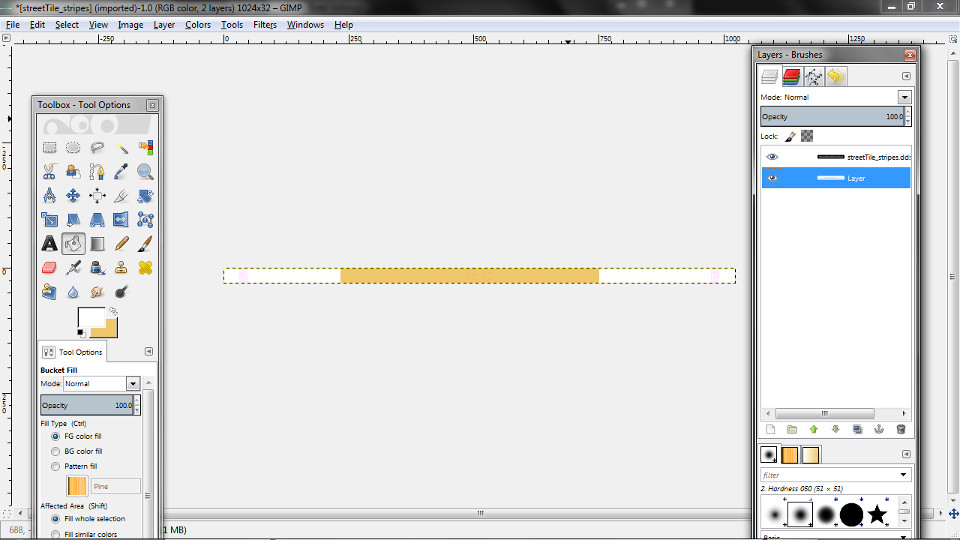
Now, I select the new layer, then use the box selection tool to select an area covering the middle. Use the fill tool (looks like a bucket) and fill that selection with the yellow. Now click on "select" on the top (near to where we clicked on "Windows" earlier to get our tools, layers, and colors) and click "none" to deselect everything. Now use the colors window to get a basic white, and use the fill tool to fill in the areas at the sides that were left uncovered by the yellow. We should now have something like this:
Now, go back to the original layer, right click it in the Layers window, and select "Add Mask", chose "Layer's Alpha Channel" and click "Add". Now click the new area to the right of the layer's thumbnail image. This is the mask. Then click on "Select" at the top, then "All". Then copy it (CTRL + C). Now merge the layers. This will create a new layer from the two, simply named "Layer" (or whatever you called your new layer at the start).
Again, now on this new layer, make a mask, again choosing "Layer's Alpha Channel".
Click on that mask, then paste (CTRL + V). This will create a new "layer" but you are locked to it:
Right click this new layer, then select "Anchor Layer".
You now have an image that looks identical to the start.
Now, click "File" in the top left. Then "Export As". If you want, you can keep it named as it was when you first opened it, overwriting the base file. If it was a DDS, select BC3/DTX5 as the type of DDS. The images I am editing from the custom roads pack are all in PNG, so I simply save it as PNG and done. Gimp has a slider labeled "Compression Level", which it tries to set to 9 by default. I don't know what this is, but I set it to 0, and it worked.
I have been doing this with CAW open, and I have only been able to get the textures fixed after closing and reopening CAW.
Hope this is easy for everyone to understand, and thank you very much to @anamericanwaste with helping me when I first made this thread!